




【システム更新のお知らせ/Notice of System Replacement】
システム更新に伴い、旧クラウドデスクトップ(Omnissa/VMware Horizon Client) は2026年2月27日17:00をもって終了しました。
本ページを参考に、新クラウドデスクトップ(Accops Workspace)をご利用ください。
Due to the system renewal, the old cloud desktop will no longer be accessible as of February 27, 2026, at 5:00 PM.
Please refer to this page and use the new cloud desktop (Accops Workspace).
・旧クラウドデスクトップ(Omnissa/VMware Horizon Client) からサインアウトしてからアクセスしてください。
Please sign out of the old cloud desktop(Omnissa/VMware Horizon Client) before accessing.
・ホームディレクトリ上のデータは引き継がれます。ファイルのバックアップは不要です。
Data in your home directory will be preserved. No file backup is necessary.
・タスクバーのピン止めされているアプリはリセットされます。お手数をおかけいたしますが、再セットアップをお願いいたします。
The pinned apps on the taskbar will be reset. We apologize for the inconvenience, please re-set them.
Cloud desktop (Windows environment)
Introduction
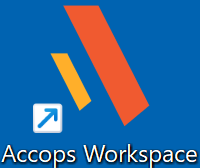
The virtual desktop environment (Windows) is the Windows virtual desktop environment provided by the infrastructure center. Windows desktop environment can be used almost the same as a physical personal computer.
The virtual desktop environment can be freely used at any time from the thin client terminal distributed by the center, personal computer, tablet, etc.
This virtual desktop environment is centrally managed by the infrastructure center and automatic backup is also maintained. In addition, software applications useful for research are pre-installed.
Please feel free to use it.
Virtual Desktop Environment Usage Guide
Here, we will briefly explain how to use the JAIST Cloud (Windows virtual desktop environment).
You can connect using Accops Workspace from thin clients as well as from your PC.
Access Methods
There are two ways to use the service:
1. Using a Web Browser
This method allows you to access the service directly from a web browser.
1-1 Access via Web Browser
Please access the following URL and sign in with JAIST-SSO.
- Connection URL: https://vdi.jaist.ac.jp/
Related Information
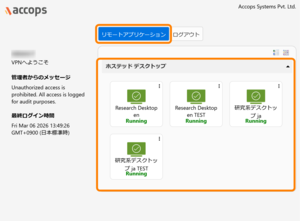
1-2 Select the VDI to Use
After logging in to Accops Workspace, select the desktop environment (VDI) you wish to use from "Remote Applications" > "Hosted Desktop."
Note: Only the desktop environments available to the logged-in user will be displayed.
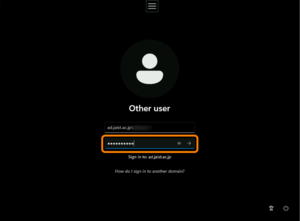
1-3 Enter Password
When the Windows sign-in screen appears, please enter your JAIST-SSO password and sign in.
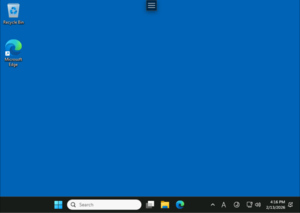
1-4 Sign In to VDI
After the selected desktop environment (VDI) starts and you sign in, you are ready to use the service.
2. Using a Client Application
This method involves installing and using the Accops Workspace client application.
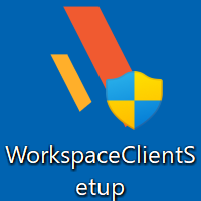
2-1 Install the Client Application
The download URL will be displayed after you log in.
Enter your Username and Password below, then click the “Login” button.
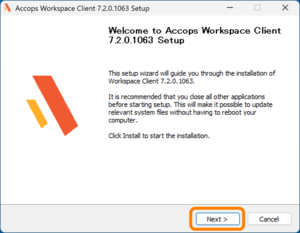
2-2 Start the Setup Wizard
When the setup wizard start screen appears, click "Next."
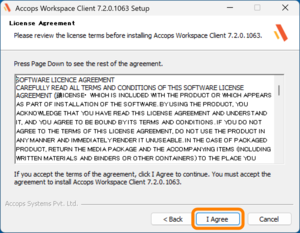
2-3 Accept the License Agreement
When the License Agreement is displayed, please review the content and click "I agree."
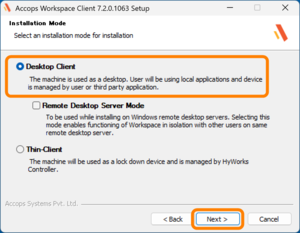
2-4 Select the Installation Mode
When the Installation Mode selection screen appears, select "Desktop Client" and click "Next."
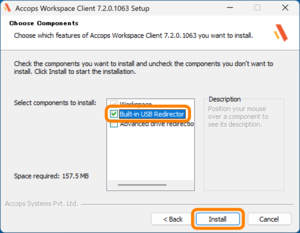
2-5 Select Components
When the Choose Components screen appears, select the "Built-in USB Redirector" checkbox under "Select components to install", then click "Install".
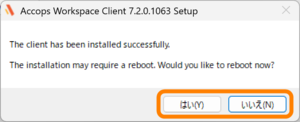
2-6 Installation Complete and Restart
When the installation is complete, a restart confirmation message will be displayed. Select "Yes" to restart immediately, or "No" to restart later.
2-7 Launch Accops Workspace
After restarting, launch Accops Workspace.
* SSL-VPN connection is not required.
*As of April 2026, we have confirmed that this service does not function properly while a VPN connection is active. Please disconnect from the VPN before attempting to connect.
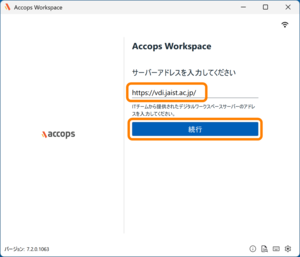
2-8 Enter the Server Address
Enter the following in the server address field and click "Continue."
- Server Address: https://vdi.jaist.ac.jp/
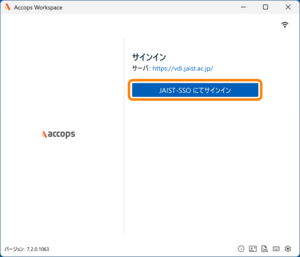
2-9 Sign In with JAIST-SSO
Attention:
We have confirmed that client certificates cannot be used as an authentication factor for JAIST-SSO authentication from external networks in Accops WorkSpace.
Please authenticate using OTP (Authenticator/mail) or passkey, or connect to the campus network via SSL-VPN before using this service.
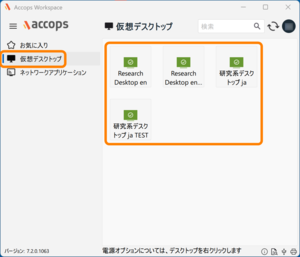
2-10 Select the VDI to Use
After logging in to Accops Workspace, select the desktop environment (VDI) you wish to use from "Virtual Desktop.."
Note: Only the desktop environments available to the logged-in user will be displayed.
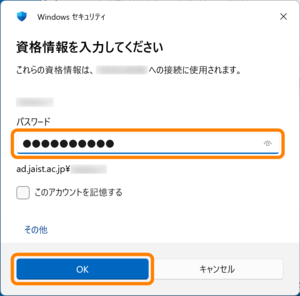
2-11 Enter Credentials
When prompted to enter your credentials, please enter your JAIST-SSO password and click "OK."
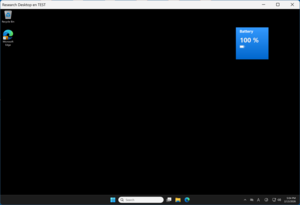
2-12 Sign In to VDI
After the selected desktop environment (VDI) starts and you sign in, you are ready to use the service.
3. When Ending Your Session
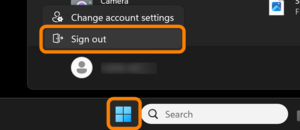
Select "Sign Out" from the Start menu in the desktop environment (VDI). After the desktop environment (VDI) closes, log out of Accops Workspace according to your access method.
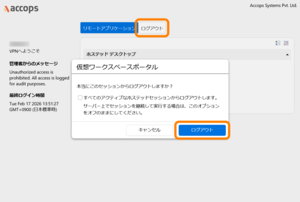
For Web Browser:
When you return to the VDI selection screen, click "Logout." When the confirmation dialog appears, click "Logout" again.
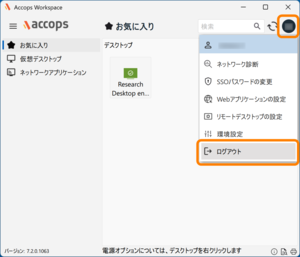
For Client Application:
Click the account button in the upper right corner to display the menu. Select "Logout."